
Showing posts with label Tutorials. Show all posts
Showing posts with label Tutorials. Show all posts
Photoshop Tutorials
Check out this website with oodles of wonderful Photoshop tutorials by Jessica Sprague broken into categories: Photo Editing, Type Treatments (playing with text), Brushes, Patterned Paper and Drawing Tools, and General Photoshop Tips. Almost any of these tips can be used to make your blog design better. I always love learning new tricks!
Creating Your Own Font
Did you know that text can work as a mask in Photoshop or Photoshop Elements? This means that you can make your own alphas by covering your text with any scrapbook paper, fill it with a color, cover it with a photo, or decorate it however you want. I'll give you a few examples. I use PSE8, so there may be slight differences for your program.
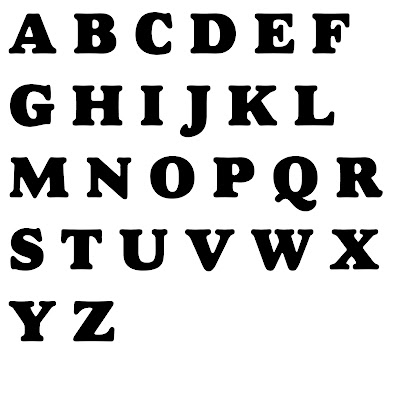
I made myself a template with all the capital letters of the alphabet. It doesn't matter what font you use for the template. I used Alfredo Heavy because it's chunky. Use a text box to type your letters, then save your template as a PDF file. This will save time when you want to make an alpha in the future. I also made a template for lower case letters, and numbers/symbols. Size doesn't matter because you can resize to match your project when you're done. If you just want to make a single word without saving your cute font for future use, you can skip this step.
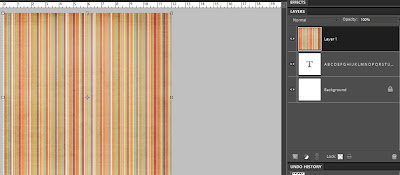
 Open a cute paper you want to cover your letters with. I used some stripes from Shabby Princess Sun Porch. With the Move Tool selected, drag your paper onto your page with the letters. Make sure your paper layer is above your text layer in the Layers Palette, and push CTRL-G (for grab). Or, you can place your cursor in between the two layers in the Layers Palette, press ALT, and click. Your palette will show a little arrow, indicating that your paper is clipped to your text. Your text has now become a clipping mask.
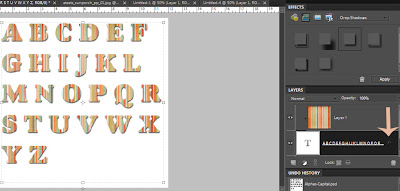
To make your font pop a little more, add some Layer Styles. In the Effects palette, choose Drop Shadows, Bevels, or Strokes. I always use Low for the Drop Shadow. With your text layer selected, click apply. Then double click on the little fx symbol in the Layers Palette. This gives you a window with lots of options. Play around with these options to give your font just the look you are going for.
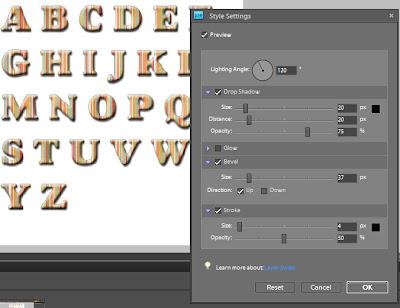
I usually change the drop shadow options to Size:5, Distance:5, Opacity: 40. This gives it a more realistic shadow. Click the little blue arrows by Bevel and Stroke to try those options. Select the check box, and change the sliders to get the effect you want. Bevel makes your image look raised, so it's more 3-dimensional. Stroke outlines your image. You can even change the color of the stroke, if you don't just want black around it. Changing the Opacity of the stroke makes it more subtle.
Now you have a fabulous font. If you just typed the words you are using, you can leave it as is. If you want to save this font for future use, you'll have to tweak it a little. You will want it to be transparent behind the font. You can create it as transparent when you first create a new file, or you can delete the background layer, leaving the rest transparent.
When you are sure your font looks as you want it to, select both your paper and text layers on the Layers Palette by holding CTRL as you click both of them. Right click and select Merge Layers. This leaves you with one fabulous font layer. To save, make sure you do File - Save As, so you don't save over your template if you made one. Save it as a PNG file, since a JPG file doesn't keep your file transparent behind the letters.
To use your font, use your Marquee Tool to select a letter, click CTRL-C, then CTRL-V. This pastes your selection on a new layer. Click on the font layer in the Layers Palette, then select your next letter. CTRL-C, CTRL-V. Do this for each letter you need for your text. Select all the letters in the Layers Palette by clicking on the top letter, holding down Shift, and clicking on the bottom layer. With all the letters selected, you can move them to your project with the Move Tool, then resize them all at the same time, just like you would resize any image. This saves so much time over resizing them individually and hoping they stay proportional to each other. Then place them where you want them.
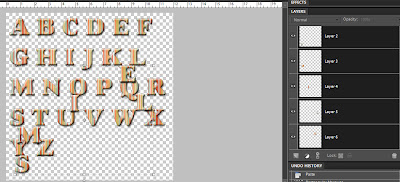

If you don't want to use scrapbook paper, you can go back in the tutorial to where I finished making my template. To change the color, your text needs to be simplified to act as a shape. Make sure you have the font you want first. Then right click on your text layer in the Layers Palette, and choose Simplify Layer. At the bottom of the tools, there is a place to set your foreground and background colors. You can set it to match one of the colors in your project, or use any other color you choose. Double click the little color square to change it to the color you want your font to be. With your text layer selected, go to Edit, Fill Layer. Make sure the Preserve Transparency box is checked. Select Foreground Color for your Content.
You can add any Layer Styles you want, like the drop shadow, bevel, or stroke as described above. Another fun way to make your font pop is to outline it with another paper or style. Hold CTRL while clicking on the little thumbnail of your font layer on the Layers Palette. This makes a dotted line selection around the entire font.
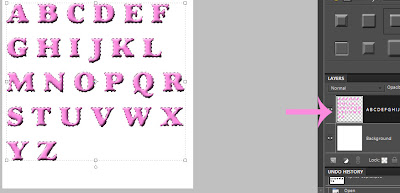
A fabulous trick to make your selection just a little larger than your current selection is to go to Select - Modify - Expand. For a thin outline, I like to do 15 or 20 pixels. For a thicker one, try 25 or 30. I'm doing 25 for this tutorial. After you click OK, you'll notice the dotted line selection surrounds your font a little away from the edge.
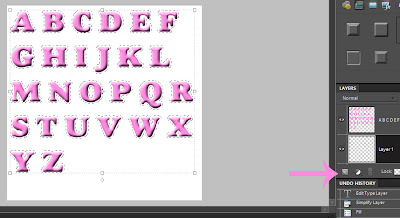
Hold CTRL while clicking the little Create a New Layer button, which is either at the top or the bottom of the Layers Palette. This creates a new layer below your font layer. Now you can use the Paint Bucket Tool to fill the layer with any color you want your outline to be by changing the Foreground Color as discussed above. I just used the color already there, since I want to cover it up with a Layer Style.
For my font, I used a Layer Style I downloaded from The Scrappin Cop, one of many sites that offer free downloads with styles, actions, brushes, and patterns. I applied the light pink glitter style she made. Since each version of Photoshop is a little different, do an internet search if you are unsure how to install these Layer Styles. Apply the style just like you apply the drop shadow, bevel, or stroke styles. You can even play with adding a glitter style to the main font layer, and keeping the outline a solid color. Or you can use the outline as a clipping mask and add a cute paper (with CTRL-G as described above) to surround the font.
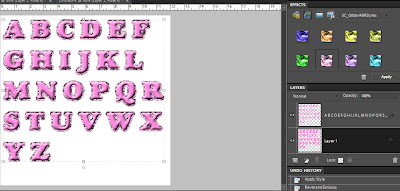
When you are ready to save your font, save it as a PSD file if you want to come back to make changes. To save it as a ready-to-use file, use the PNG format. A JPG file to preserve the transparency.
There is so much you can do with alphas, but these are just a few tricks I like to use on fonts to make them pop more for your project. I know I didn't go into detail with every little step. Every one is at a different level with using Photoshop. If you have any questions, please see the contact info on the sidebar.
I made myself a template with all the capital letters of the alphabet. It doesn't matter what font you use for the template. I used Alfredo Heavy because it's chunky. Use a text box to type your letters, then save your template as a PDF file. This will save time when you want to make an alpha in the future. I also made a template for lower case letters, and numbers/symbols. Size doesn't matter because you can resize to match your project when you're done. If you just want to make a single word without saving your cute font for future use, you can skip this step.
 Open a cute paper you want to cover your letters with. I used some stripes from Shabby Princess Sun Porch. With the Move Tool selected, drag your paper onto your page with the letters. Make sure your paper layer is above your text layer in the Layers Palette, and push CTRL-G (for grab). Or, you can place your cursor in between the two layers in the Layers Palette, press ALT, and click. Your palette will show a little arrow, indicating that your paper is clipped to your text. Your text has now become a clipping mask.

To make your font pop a little more, add some Layer Styles. In the Effects palette, choose Drop Shadows, Bevels, or Strokes. I always use Low for the Drop Shadow. With your text layer selected, click apply. Then double click on the little fx symbol in the Layers Palette. This gives you a window with lots of options. Play around with these options to give your font just the look you are going for.

I usually change the drop shadow options to Size:5, Distance:5, Opacity: 40. This gives it a more realistic shadow. Click the little blue arrows by Bevel and Stroke to try those options. Select the check box, and change the sliders to get the effect you want. Bevel makes your image look raised, so it's more 3-dimensional. Stroke outlines your image. You can even change the color of the stroke, if you don't just want black around it. Changing the Opacity of the stroke makes it more subtle.
Now you have a fabulous font. If you just typed the words you are using, you can leave it as is. If you want to save this font for future use, you'll have to tweak it a little. You will want it to be transparent behind the font. You can create it as transparent when you first create a new file, or you can delete the background layer, leaving the rest transparent.
When you are sure your font looks as you want it to, select both your paper and text layers on the Layers Palette by holding CTRL as you click both of them. Right click and select Merge Layers. This leaves you with one fabulous font layer. To save, make sure you do File - Save As, so you don't save over your template if you made one. Save it as a PNG file, since a JPG file doesn't keep your file transparent behind the letters.
To use your font, use your Marquee Tool to select a letter, click CTRL-C, then CTRL-V. This pastes your selection on a new layer. Click on the font layer in the Layers Palette, then select your next letter. CTRL-C, CTRL-V. Do this for each letter you need for your text. Select all the letters in the Layers Palette by clicking on the top letter, holding down Shift, and clicking on the bottom layer. With all the letters selected, you can move them to your project with the Move Tool, then resize them all at the same time, just like you would resize any image. This saves so much time over resizing them individually and hoping they stay proportional to each other. Then place them where you want them.


If you don't want to use scrapbook paper, you can go back in the tutorial to where I finished making my template. To change the color, your text needs to be simplified to act as a shape. Make sure you have the font you want first. Then right click on your text layer in the Layers Palette, and choose Simplify Layer. At the bottom of the tools, there is a place to set your foreground and background colors. You can set it to match one of the colors in your project, or use any other color you choose. Double click the little color square to change it to the color you want your font to be. With your text layer selected, go to Edit, Fill Layer. Make sure the Preserve Transparency box is checked. Select Foreground Color for your Content.
You can add any Layer Styles you want, like the drop shadow, bevel, or stroke as described above. Another fun way to make your font pop is to outline it with another paper or style. Hold CTRL while clicking on the little thumbnail of your font layer on the Layers Palette. This makes a dotted line selection around the entire font.

A fabulous trick to make your selection just a little larger than your current selection is to go to Select - Modify - Expand. For a thin outline, I like to do 15 or 20 pixels. For a thicker one, try 25 or 30. I'm doing 25 for this tutorial. After you click OK, you'll notice the dotted line selection surrounds your font a little away from the edge.

Hold CTRL while clicking the little Create a New Layer button, which is either at the top or the bottom of the Layers Palette. This creates a new layer below your font layer. Now you can use the Paint Bucket Tool to fill the layer with any color you want your outline to be by changing the Foreground Color as discussed above. I just used the color already there, since I want to cover it up with a Layer Style.
For my font, I used a Layer Style I downloaded from The Scrappin Cop, one of many sites that offer free downloads with styles, actions, brushes, and patterns. I applied the light pink glitter style she made. Since each version of Photoshop is a little different, do an internet search if you are unsure how to install these Layer Styles. Apply the style just like you apply the drop shadow, bevel, or stroke styles. You can even play with adding a glitter style to the main font layer, and keeping the outline a solid color. Or you can use the outline as a clipping mask and add a cute paper (with CTRL-G as described above) to surround the font.

When you are ready to save your font, save it as a PSD file if you want to come back to make changes. To save it as a ready-to-use file, use the PNG format. A JPG file to preserve the transparency.
There is so much you can do with alphas, but these are just a few tricks I like to use on fonts to make them pop more for your project. I know I didn't go into detail with every little step. Every one is at a different level with using Photoshop. If you have any questions, please see the contact info on the sidebar.
Labels:
Creating Your Own Font,
PSE,
Tutorials


Adding HTML/JavaScripts (3rd Party Functions) to your sidebar
Once you have found a gadget/ticker or an object you want to add to your side bar (how about one of my cute buttons on the side :) hint, hint!) Copy the html code and follow these instructions:


This next hint is for adjusting the html codes you just pasted in your 'add a gadget, add html/javascripts' button as demonstrated above. (This is NOT for your entire blog's html. Just for the gadget. Got it? Good.)


This next hint is for adjusting the html codes you just pasted in your 'add a gadget, add html/javascripts' button as demonstrated above. (This is NOT for your entire blog's html. Just for the gadget. Got it? Good.)

Labels:
Add a Gadget,
Side Bar,
Tutorials
Create a scalloped edge with the brush tool
I should be scrapbooking...(it's not that often I have a minute to myself) but since I just learned this cool, new and EASY trick, I just had to share...
Check out this website for a step by step guide and a FREE download for the brush tool to create your own scalloped edge in pse or photoshop. SO, SO COOL!!!!
Scalloped Edge
P.S. I used the first link to download the brushes (I have pse 7.0), not the second, alternative link she also has. If you have questions or need any help, shoot me an e-mail and I'll help you out.
A few pointers:
To pull up the brush tool, just hit B in pse, and up it will come.
Instead of selecting Replace brushes, choose Load brushes (replace isn't an option in pse)
Happy scalloping!!!
Check out this website for a step by step guide and a FREE download for the brush tool to create your own scalloped edge in pse or photoshop. SO, SO COOL!!!!
Scalloped Edge
P.S. I used the first link to download the brushes (I have pse 7.0), not the second, alternative link she also has. If you have questions or need any help, shoot me an e-mail and I'll help you out.
A few pointers:
To pull up the brush tool, just hit B in pse, and up it will come.
Instead of selecting Replace brushes, choose Load brushes (replace isn't an option in pse)
Happy scalloping!!!
Labels:
Brushes,
Downloads,
PSE,
Scalloped Edge,
Tutorials
PSE Tricks
How about some Photoshop tricks???
One of my VERY favorite tricks is 'grabbing'. Have you ever had an object, embellishment etc. that you wished was a different color? Grabbing is a great way to change the color of an object.
Demonstration:

Another great trick- adding a vignette to a photo:

One of my VERY favorite tricks is 'grabbing'. Have you ever had an object, embellishment etc. that you wished was a different color? Grabbing is a great way to change the color of an object.
Demonstration:

Another great trick- adding a vignette to a photo:

Snow!
Add some gently, falling snow to your blog....it's light enough that it won't distract your readers.
- Go to Layout
- Go to Add A Gadget
- Select Add HTML/JavaScript gadget
- Paste this code:
<em><script src="http://snow-effect.googlecode.com/files/snow.js" type="text/javascript"><br /><br />/***********************************************<br />* Snow Effect without images-by Kurt Grigg at http://www.btinternet.com/~kurt.grigg/javascript<br /><br />* Script featured & available at Dynamic Drive at http://www.dynamicdrive.com/<br /><br />* Please keep this notice intact<br />***********************************************/<br /><br /></script></em>
Labels:
Html codes,
Tutorials
How to Create a Menu Bar for Blogger Layouts
I used the following link to create a menu bar on The Red Daisy:
I found she did a great job explaining it, so nothing needs to be changed!
http://www.reallifeblog.net/2007/10/how-to-create-menu-bar-for-blogger.html
I've also copied & pasted the post below (just in case the link stops working...)




I found she did a great job explaining it, so nothing needs to be changed!
http://www.reallifeblog.net/2007/10/how-to-create-menu-bar-for-blogger.html
I've also copied & pasted the post below (just in case the link stops working...)


Labels:
Html codes,
Menu Bar,
Tutorials
Photo Tinting
I use Photoshop Elements for this...I'm not sure how it works in Photoshop CS3 or CS4..I will try and find out. But for all of you PSE'ers...here ya go....
First, open up a photo (ctrl O). Press D to make sure your default layers are selected (black and white, with black being the top square and white being the bottom square in the left corner of your photoshop screen.)
Now, click on the Layer tab, scroll down until you see New Adjustment Layer and then select Gradient Map.


Click O.k.

Click o.k. again.

^notice the black & white square above...
Now, to get working, press B (for brush tool) and run your brush over any area you want to be in color. You can adjust the size of your brush by pressing the bracket keys (next to the letter P on your keyboard). Make sure the black square is always on top...it will only show the color if the black square is selected.

To be precise, press Z for the zoom tool and zoom in closer to get in all the tiny nooks. Press B to go back to the brush tool.
Don't worry about any mistakes you may make...we will fix them next step. For now, just get everything you want in color, in color.
To fix anything in color that you want in black and white, do this:

Once you have selected the white square by clicking the arrow, take your brush (B) over any area you want in black and white that you accidentally put in color. Remember, if you want something in color, click the arrow to select black again.

Good job!
First, open up a photo (ctrl O). Press D to make sure your default layers are selected (black and white, with black being the top square and white being the bottom square in the left corner of your photoshop screen.)
Now, click on the Layer tab, scroll down until you see New Adjustment Layer and then select Gradient Map.
Click O.k.
Click o.k. again.
^notice the black & white square above...
Now, to get working, press B (for brush tool) and run your brush over any area you want to be in color. You can adjust the size of your brush by pressing the bracket keys (next to the letter P on your keyboard). Make sure the black square is always on top...it will only show the color if the black square is selected.
To be precise, press Z for the zoom tool and zoom in closer to get in all the tiny nooks. Press B to go back to the brush tool.
Don't worry about any mistakes you may make...we will fix them next step. For now, just get everything you want in color, in color.
To fix anything in color that you want in black and white, do this:
Once you have selected the white square by clicking the arrow, take your brush (B) over any area you want in black and white that you accidentally put in color. Remember, if you want something in color, click the arrow to select black again.
Good job!
Labels:
Photo Tinting,
Photos,
PSE,
Tutorials
Burned Edge
Now that your photo is tinted, how about taking it up one more notch? I don't even know if burned edge is what professionals would call this, but here ya go...
First, select a photo to do this too if you don't have one opened yet.

Press D to make sure your default colors are selected before going to the next step.

(sorry about the typo above..it's late, so I'm not gonna fix it. I meant to say It should look like this, not Is should look like this...)
Now press M to select the marquee tool. You can do this in the shape of a rectangle , oval etc. I chose to
do it in the shape of a rectangle for this photo.

Draw your rectangle.
Now go up to the Select tab and choose the Feather option.

Click O.k. Now press backspace.
Ta Da!

To adjust the opacity, select only layer 1 by clicking on it, then click on the down arrow next to Opacity. Slide the scale until you find the right level for you.

And here is the cute lil princess herself!
First, select a photo to do this too if you don't have one opened yet.
Press D to make sure your default colors are selected before going to the next step.
(sorry about the typo above..it's late, so I'm not gonna fix it. I meant to say It should look like this, not Is should look like this...)
Now press M to select the marquee tool. You can do this in the shape of a rectangle , oval etc. I chose to
do it in the shape of a rectangle for this photo.
Draw your rectangle.
Now go up to the Select tab and choose the Feather option.
Click O.k. Now press backspace.
Ta Da!
To adjust the opacity, select only layer 1 by clicking on it, then click on the down arrow next to Opacity. Slide the scale until you find the right level for you.
And here is the cute lil princess herself!
Labels:
Burned Edge,
Photos,
PSE,
Tutorials
{Making a cute background for your blog}
For those of you who have seen my family blog, you know I love to have cute digital scrapbook paper all over it! If you've ever wondered how I do it, here ya go:
It does require a little editing of the html (do not be afraid of html- it is your friend!) and really not that hard at all to navigate around. There are 2 important rules to follow anytime you change your html. First- save a backup copy of your current html by copying (right click, select all, copy) & pasting (right click, paste or ctrl V) your entire current html to a word document. Second, always, always use the blue preview button to verify your changes worked before you save the template.
{How to make the body & background:}
I recommend & use the blogger template DENIM for my family blog. I think it gives the most options for changing the background to cute papers. Go to layout, then pick new template to change yours to denim.
Open up the html tab (in Blogger) by going to your dashboard, select layout, & then select edit html.
background-image: url(http://i261.photobucket.com/albums/ii55/emilyhburton/ShabbyP_Kiwi_BlackLinenPaper.jpg);
background-attachment: fixed;
margin: 0;
margin:0;
padding: 0;
text-align: $startSide;
width: 1150px;
margin: 0 auto;
After you have created your header & saved it in jpeg format, you need to upload it to your blog. Do this by selecting layout, page elements, then click below on the edit header button. Upload the header you've created (I click from my computer, since that is where I save mine) and make sure to select instead of title & description & save.
This is what the Denim template html will look like when you first create your blog background. No changes have been made:
body {
background: $bgColor;
margin: 0;
padding: 0px;
font: x-small Verdana, Arial;
text-align: center;
color: $textColor;
font-size/* */:/**/small;
font-size: /**/small;
}
a:link {
color: $linkColor;
}
a:visited {
color: $linkColor;
}
a img {
border-width: 0;
}
#outer-wrapper {
font: $bodyFont;
}
/* Header
----------------------------------------------- */
#header-wrapper {
margin:0;
padding: 0;
background-color: $headerCornersColor;
text-align: $startSide;
}
#header {
width: 760px;
margin: 0 auto;
background-color: $headerBgColor;
border: 1px solid $headerBgColor;
color: $headerTextColor;
padding: 0;
font: $headerFont;
}
h1.title {
padding-top: 38px;
margin: 0 14px .1em;
line-height: 1.2em;
font-size: 100%;
}
h1.title a, h1.title a:visited {
color: $headerTextColor;
text-decoration: none;
}
#header .description {
display: block;
margin: 0 14px;
padding: 0 0 40px;
line-height: 1.4em;
font-size: 50%;
}
/* Content
----------------------------------------------- */
.clear {
clear: both;
}
#content-wrapper {
width: 760px;
margin: 0 auto;
padding: 0 0 15px;
text-align: $startSide;
background-color: $mainBgColor;
border: 1px solid $borderColor;
border-top: 0;
}
#main-wrapper {
margin-$startSide: 14px;
width: 464px;
float: $startSide;
background-color: $mainBgColor;
display: inline; /* fix for doubling margin in IE */
word-wrap: break-word; /* fix for long text breaking sidebar float in IE */
overflow: hidden; /* fix for long non-text content breaking IE sidebar float */
}
#sidebar-wrapper {
margin-$endSide: 14px;
width: 240px;
float: $endSide;
background-color: $mainBgColor;
display: inline; /* fix for doubling margin in IE */
word-wrap: break-word; /* fix for long text breaking sidebar float in IE */
overflow: hidden; /* fix for long non-text content breaking IE sidebar float */
This is what it will look like after you have made changes: (note-this is my own html, I have changed widths etc, which you don't have to do to have cute paper. ) It might help you to just copy and paste this entire thing, and then just edit the html for your own images in the parenthesis instead of starting from scratch. All things in pink are changes I've made.
body {
background-image: url(http://i261.photobucket.com/albums/ii55/emilyhburton/ShabbyP_Kiwi_BlackLinenPaper.jpg);
background-attachment: fixed;
margin: 0;
padding: 0px;
font: x-small Verdana, Arial;
text-align: center;
color: $textColor;
font-size/* */:/**/small;
font-size: /**/small;
}
a:link {
color: $linkColor;
}
a:visited {
color: $linkColor;
}
a img {
border-width: 0;
}
#outer-wrapper {
font: $bodyFont;
}
/* Header
----------------------------------------------- */
#header-wrapper {
margin:0;
padding: 0;
text-align: $startSide;
}
#header {
width: 1150px;
margin: 0 auto;
background-color: $headerBgColor;
border: 1px solid $headerBgColor;
color: $headerTextColor;
padding: 0;
font: $headerFont;
}
h1.title {
padding-top: 38px;
margin: 0 14px .1em;
line-height: 1.2em;
font-size: 100%;
}
h1.title a, h1.title a:visited {
color: $headerTextColor;
text-decoration: none;
}
#header .description {
display: block;
margin: 0 14px;
padding: 0 0 40px;
line-height: 1.4em;
font-size: 50%;
}
/* Content
----------------------------------------------- */
.clear {
clear: both;
}
#content-wrapper {
background-image: url(http://i261.photobucket.com/albums/ii55/emilyhburton/aqua.jpg);
width: 1150px;
margin: 0 auto;
padding: 0 0 15px;
text-align: $startSide;
background-color: $mainBgColor;
border: 1px solid $borderColor;
border-top: 0;
}
#main-wrapper {
background-image: url(http://i261.photobucket.com/albums/ii55/emilyhburton/aqua.jpg);
margin-$startSide: 14px;
width: 775px;
float: $startSide;
background-color: $mainBgColor;
display: inline; /* fix for doubling margin in IE */
word-wrap: break-word; /* fix for long text breaking sidebar float in IE */
overflow: hidden; /* fix for long non-text content breaking IE sidebar float */
}
#sidebar-wrapper {
background-image: url(http://i261.photobucket.com/albums/ii55/emilyhburton/red2.jpg);
margin-$endSide: 14px;
width: 300px;
float: $endSide;
background-color: $mainBgColor;
display: inline; /* fix for doubling margin in IE */
word-wrap: break-word; /* fix for long text breaking sidebar float in IE */
overflow: hidden; /* fix for long non-text content breaking IE sidebar float */
}
Wow! You did it. You know have a fabulously cute blog. Congrats!
I must give credit where credit is due: thank you to Britta who originally taught me this!
It does require a little editing of the html (do not be afraid of html- it is your friend!) and really not that hard at all to navigate around. There are 2 important rules to follow anytime you change your html. First- save a backup copy of your current html by copying (right click, select all, copy) & pasting (right click, paste or ctrl V) your entire current html to a word document. Second, always, always use the blue preview button to verify your changes worked before you save the template.
{How to make the body & background:}
I recommend & use the blogger template DENIM for my family blog. I think it gives the most options for changing the background to cute papers. Go to layout, then pick new template to change yours to denim.
Open up the html tab (in Blogger) by going to your dashboard, select layout, & then select edit html.
Scroll down in the HTML until you see the following:
body {
background
Change it to read:
body {
background-image: url(http://---whatevever the link is for your paper);
with a link to the desired image you want to use as your background inside the parentheses.
Where do you find digital scrapbook images to even use as your background? Click here for help!
Now, you might be wondering where you get the html code for your image to insert into the parentheses. You need to have an account with photobucket. Upload your image(s) to photobucket. Once they have finished uploading, photobucket will give you a set of 4 codes. You will need the direct link code (the 2nd option) for this. Copy and paste it in between the parentheses. Now, before you save it, click the blue preview button to make sure it worked. If it did, click the orange save template button.
-If you don’t want your background to move when you scroll down, type this in below the background image:
background-attachment: fixed;
This is what mine looks like complete:
body {background-image: url(http://i261.photobucket.com/albums/ii55/emilyhburton/ShabbyP_Kiwi_BlackLinenPaper.jpg);
background-attachment: fixed;
margin: 0;
It is really important you do not add any extra spaces, periods or any other characters to the html code. It will not work if you do!
You can use the same setup to change your content wrapper (the main, middle column-where your posts appear). You need to change it in 2 places. Scroll down until you see /* Content, then the #content-wrapper below & follow the above steps to change it. Also change it right below in the #main wrapper section. Mine looks like this:
#content-wrapper {
background-image: url(http://i261.photobucket.com/albums/ii55/emilyhburton/aqua.jpg);
width: 1150px;
margin: 0 auto;
padding: 0 0 15px;
text-align: $startSide;
background-color: $mainBgColor;
border: 1px solid $borderColor;
border-top: 0;
}
#main-wrapper {
background-image: url(http://i261.photobucket.com/albums/ii55/emilyhburton/aqua.jpg);
margin-$startSide: 14px;
width: 775px;
I recommend not using any grainy or patterned paper for your content wrapper because it can make it hard for others to read your posts. Stick to a simple, basic solid color paper. You can see I have also adjusted the width of my content wrapper as well to match the size of my header. (I highlighted it in green).
Now, there is one last place you can change the background image and that is the #sidebar wrapper (found just below the content & main wrapper section in you html.) This is that little column where your page elements appear (like blog lists, archives, etc.).
Here is what mine looks like:
#sidebar-wrapper {
background-image: url(http://i261.photobucket.com/albums/ii55/emilyhburton/red2.jpg);
margin-$endSide: 14px;
width: 300px;
float: $endSide;
I changed the width here as well (in green).
You need to also delete the following from your html to get rid of the 'columns' on the side of your header:
#header-wrapper {
margin:0;
padding: 0;
background-color: $headerCornersColor;
text-align: $startSide;
So it should look like this: (just backspace to bring the text-align part up)
margin:0;
padding: 0;
text-align: $startSide;
{To make the header:}
In the html code, it says what width your header is. I use this to determine how big to make my headers. For example, the denim template code shows this under the body section:
#header { width: 760px;
You can leave the header width as is & make your header that same size; OR if you want your header bigger, just increase the pixels. I have mine set at 1150. Just make sure to make your header the same pixels wide as the pixels set in you html code.
This is what mine looks like:
#header {width: 1150px;
margin: 0 auto;
After you have created your header & saved it in jpeg format, you need to upload it to your blog. Do this by selecting layout, page elements, then click below on the edit header button. Upload the header you've created (I click from my computer, since that is where I save mine) and make sure to select instead of title & description & save.
This is what the Denim template html will look like when you first create your blog background. No changes have been made:
body {
background: $bgColor;
margin: 0;
padding: 0px;
font: x-small Verdana, Arial;
text-align: center;
color: $textColor;
font-size/* */:/**/small;
font-size: /**/small;
}
a:link {
color: $linkColor;
}
a:visited {
color: $linkColor;
}
a img {
border-width: 0;
}
#outer-wrapper {
font: $bodyFont;
}
/* Header
----------------------------------------------- */
#header-wrapper {
margin:0;
padding: 0;
background-color: $headerCornersColor;
text-align: $startSide;
}
#header {
width: 760px;
margin: 0 auto;
background-color: $headerBgColor;
border: 1px solid $headerBgColor;
color: $headerTextColor;
padding: 0;
font: $headerFont;
}
h1.title {
padding-top: 38px;
margin: 0 14px .1em;
line-height: 1.2em;
font-size: 100%;
}
h1.title a, h1.title a:visited {
color: $headerTextColor;
text-decoration: none;
}
#header .description {
display: block;
margin: 0 14px;
padding: 0 0 40px;
line-height: 1.4em;
font-size: 50%;
}
/* Content
----------------------------------------------- */
.clear {
clear: both;
}
#content-wrapper {
width: 760px;
margin: 0 auto;
padding: 0 0 15px;
text-align: $startSide;
background-color: $mainBgColor;
border: 1px solid $borderColor;
border-top: 0;
}
#main-wrapper {
margin-$startSide: 14px;
width: 464px;
float: $startSide;
background-color: $mainBgColor;
display: inline; /* fix for doubling margin in IE */
word-wrap: break-word; /* fix for long text breaking sidebar float in IE */
overflow: hidden; /* fix for long non-text content breaking IE sidebar float */
}
#sidebar-wrapper {
margin-$endSide: 14px;
width: 240px;
float: $endSide;
background-color: $mainBgColor;
display: inline; /* fix for doubling margin in IE */
word-wrap: break-word; /* fix for long text breaking sidebar float in IE */
overflow: hidden; /* fix for long non-text content breaking IE sidebar float */
This is what it will look like after you have made changes: (note-this is my own html, I have changed widths etc, which you don't have to do to have cute paper. ) It might help you to just copy and paste this entire thing, and then just edit the html for your own images in the parenthesis instead of starting from scratch. All things in pink are changes I've made.
body {
background-image: url(http://i261.photobucket.com/albums/ii55/emilyhburton/ShabbyP_Kiwi_BlackLinenPaper.jpg);
background-attachment: fixed;
margin: 0;
padding: 0px;
font: x-small Verdana, Arial;
text-align: center;
color: $textColor;
font-size/* */:/**/small;
font-size: /**/small;
}
a:link {
color: $linkColor;
}
a:visited {
color: $linkColor;
}
a img {
border-width: 0;
}
#outer-wrapper {
font: $bodyFont;
}
/* Header
----------------------------------------------- */
#header-wrapper {
margin:0;
padding: 0;
text-align: $startSide;
}
#header {
width: 1150px;
margin: 0 auto;
background-color: $headerBgColor;
border: 1px solid $headerBgColor;
color: $headerTextColor;
padding: 0;
font: $headerFont;
}
h1.title {
padding-top: 38px;
margin: 0 14px .1em;
line-height: 1.2em;
font-size: 100%;
}
h1.title a, h1.title a:visited {
color: $headerTextColor;
text-decoration: none;
}
#header .description {
display: block;
margin: 0 14px;
padding: 0 0 40px;
line-height: 1.4em;
font-size: 50%;
}
/* Content
----------------------------------------------- */
.clear {
clear: both;
}
#content-wrapper {
background-image: url(http://i261.photobucket.com/albums/ii55/emilyhburton/aqua.jpg);
width: 1150px;
margin: 0 auto;
padding: 0 0 15px;
text-align: $startSide;
background-color: $mainBgColor;
border: 1px solid $borderColor;
border-top: 0;
}
#main-wrapper {
background-image: url(http://i261.photobucket.com/albums/ii55/emilyhburton/aqua.jpg);
margin-$startSide: 14px;
width: 775px;
float: $startSide;
background-color: $mainBgColor;
display: inline; /* fix for doubling margin in IE */
word-wrap: break-word; /* fix for long text breaking sidebar float in IE */
overflow: hidden; /* fix for long non-text content breaking IE sidebar float */
}
#sidebar-wrapper {
background-image: url(http://i261.photobucket.com/albums/ii55/emilyhburton/red2.jpg);
margin-$endSide: 14px;
width: 300px;
float: $endSide;
background-color: $mainBgColor;
display: inline; /* fix for doubling margin in IE */
word-wrap: break-word; /* fix for long text breaking sidebar float in IE */
overflow: hidden; /* fix for long non-text content breaking IE sidebar float */
}
Wow! You did it. You know have a fabulously cute blog. Congrats!
I must give credit where credit is due: thank you to Britta who originally taught me this!
Labels:
Blog Backgrounds,
Headers,
Html codes,
Tutorials
{Downloading & Installing Digital Scrapbook kits}
I recommend creating a new folder to store all the digital kits you download so they are all in one spot.

After you have found a digital scrapbook kit you like, select it and download it. Click save file once and then ok.


Now follow the prompts in the Extraction Wizard.
After you have found a digital scrapbook kit you like, select it and download it. Click save file once and then ok.
Now follow the prompts in the Extraction Wizard.
- Select next
- And then select next again
- Now click finish
{Creating a Header to upload to your blog}
I use Photoshop Elements to create my headers. If you don't want to buy PSE, you can download a free trial version, however it will only work for 30 days. Of course, you can also use Photoshop CS3 (or whatever version you have) as well.
OR for a similiar, free download, you can use the following imaging editing tools to create your header:
GIMP
Paint 3.36
PhotoPlus SE
Photoscape
(I should note that I myself have not used the free downloads since I use PSE, however, I have had others recommend these downloads to me for free image editing. As with any download, scan it for virus' before opening.)
Whichever program you use to create your header, make sure to save it as a JPEG so you can easily upload it to blogger.
OR for a similiar, free download, you can use the following imaging editing tools to create your header:
GIMP
Paint 3.36
PhotoPlus SE
Photoscape
(I should note that I myself have not used the free downloads since I use PSE, however, I have had others recommend these downloads to me for free image editing. As with any download, scan it for virus' before opening.)
Whichever program you use to create your header, make sure to save it as a JPEG so you can easily upload it to blogger.
{Downloading & Installing Fonts}
So you want to download a font but aren't quite sure how...Well, here ya go. I've tried to make this as simple and easy as possible. After selecting your font from your favorite free font website, follow these instructions:


You will save it on the 'C' Drive in the Windows Folder.

***This step is really important**** Make sure to save it to the FONTS folder!


Now follow the prompts in the Extraction Wizard.
Now you will see this image once you've successfully unzipped your font.

Your font will now be ready to use in almost every program that has fonts (Word, Works, Photoshop etc.)
- Click once on Save File (so it's selected) and then click OK
You will save it on the 'C' Drive in the Windows Folder.
***This step is really important**** Make sure to save it to the FONTS folder!
Now follow the prompts in the Extraction Wizard.
- Select next
- And then select next again
- Now click finish
Now you will see this image once you've successfully unzipped your font.
Your font will now be ready to use in almost every program that has fonts (Word, Works, Photoshop etc.)
Labels:
Downloads,
Installing Fonts,
Tutorials
Subscribe to:
Posts (Atom)


 Posts
Posts


